

Scanning a food label takes about 10 seconds when everything goes right. When it doesn’t - blurry result, partial read, missed codes - it’s almost always one of three things: lighting, distance, or label quality.
This guide covers the exact steps to get a clean scan every time, plus what to do when the label fights back.
Two ways to scan
HalalCodeCheck gives you two options when you tap Verify Ingredients:
- Scan Label - uses your camera in real time. Best when you’re holding the product in-store.
- Upload Image - lets you pick a photo from your camera roll. Best when you already took a photo, or when the lighting is poor and you want to photograph first and upload later.
Both methods run the same OCR engine and check against the same E-codes database. The result is identical - only the input method differs.
Scanning with your camera (step by step)
Step 1: Open the scanner
Tap Verify Ingredients on the homepage. The scanner opens directly to the Scan Label tab.
Step 2: Grant camera permission (first time only)
Your browser will ask for camera access. Tap Allow. This only happens once - the permission is remembered for future visits.
Step 3: Position your phone
Hold your phone 15–25 cm (6–10 inches) from the label. You want the entire ingredient list visible in the frame - not just part of it.
A single line of text should be roughly the same height as the progress bar at the top of the scanner. Too far away and the text becomes unreadable; too close and you lose the edges.
Step 4: Keep it steady for 1–2 seconds
The scanner captures a still frame - it doesn’t stream video. Hold the phone steady for a moment, then tap the capture button. Blurry captures are the most common cause of missed E-codes.
Step 5: Review your results
Results appear within a few seconds. You’ll see:
- An overall status (Halal / Mushbooh / Haraam)
- Every E-code found, with individual status and details
- A breakdown count at the top
If a code appears in your ingredient list but not in the results, it may have been misread. See the troubleshooting section below.
Uploading a saved photo
If you’ve already photographed a label, or if you’re checking something at home:
- Tap Verify Ingredients
- Switch to the Upload Image tab
- Tap Choose Image and select your photo
- The scan runs automatically - no extra steps needed
The photo requirements are the same as live scanning: good lighting, sharp focus, full ingredient list visible.
Tips for better results
Lighting makes the biggest difference
Natural daylight or overhead white light gives the cleanest results. Avoid:
- Dim lighting - shadows cause characters to blur together
- Strong backlighting - the label washes out
- Reflective packaging - glossy surfaces create glare spots that block text
If the light is bad, photograph the label outside the shop (near a window or outside) and then upload the photo.
Flatten the label
Curved packaging - tin cans, bottles, small pouches - distorts the text at the edges. Press the label flat against a surface if possible, or photograph the section of the label that has the ingredient list (usually the flattest part).
Include the full ingredient list
The scanner reads whatever is in frame. If you crop out the bottom third of the ingredients, any E-codes listed there won’t be detected.
When in doubt, step back slightly and capture more of the label - extra whitespace doesn’t affect accuracy.
Photograph first, upload later
In a rush? Just take a photo with your regular camera app, then open HalalCodeCheck and upload it at your own pace. The result is identical to a live scan.
Troubleshooting common issues
”Nothing detected” result
This usually means one of three things:
- No E-codes in the list - the product uses ingredient names instead of E-numbers (e.g. “citric acid” instead of “E330”). Both are the same substance, but the scanner looks for E-numbers. See if you can spot any numbered additives manually.
- Text was too blurry - retake with better lighting and a steadier hand.
- The ingredient list wasn’t in frame - make sure you’re capturing the actual additives section, not the nutritional table or front-of-pack text.
Only some codes were detected
The OCR engine reads printed text - if part of the label is smudged, folded, or in very small print, those characters may be missed. Try:
- Re-scanning with better lighting
- Uploading a zoomed-in photo of just the ingredient list
- Manually searching the missed codes in the E-codes database
The result shows codes I don’t recognize
The scanner finds E-codes in the format “E” followed by a number (e.g. E471, E322, E1422). If you see a code in the result that you don’t remember seeing on the label, it was present - just easy to overlook when reading quickly.
Tap any code in the results to see the full details: what it is, where it comes from, and its halal status.
When scanning isn’t the right tool
Scanning works best for packaged products with a printed ingredient list. It’s less useful for:
- Loose or bulk foods - no ingredient list to scan
- Products with very small text - try uploading a zoomed-in photo instead
- When you know the specific E-code - search directly instead of scanning
For any E-code you already know, the E-codes database gives you the full breakdown in one tap - no camera needed.
What to do after you get a result
- All Halal - you’re good to go
- Any Mushbooh - check the source details on the individual code. Some Mushbooh codes are only an issue for specific madhabs. Read: How to interpret Halal, Mushbooh, and Haraam statuses
- Any Haraam - put it back. Check if the same product has a halal-certified version, or look for an alternative in the same food category
You’ve read the guide - the best way to get comfortable is to try it on a real label. Pick up anything with an ingredient list and scan it right here.
Related Articles
 How-To Guides
 How to Use Voice Search to Check E-Codes
A step-by-step guide to using voice search on HalalCodeCheck. Say one E-code or several at once and get instant halal status without typing.
 How-To Guides
 Understanding Halal, Mushbooh, and Haraam Status
What do Halal, Mushbooh, and Haraam mean for food additives? A clear guide to interpreting E-code statuses and making confident decisions while shopping.
 Ingredients
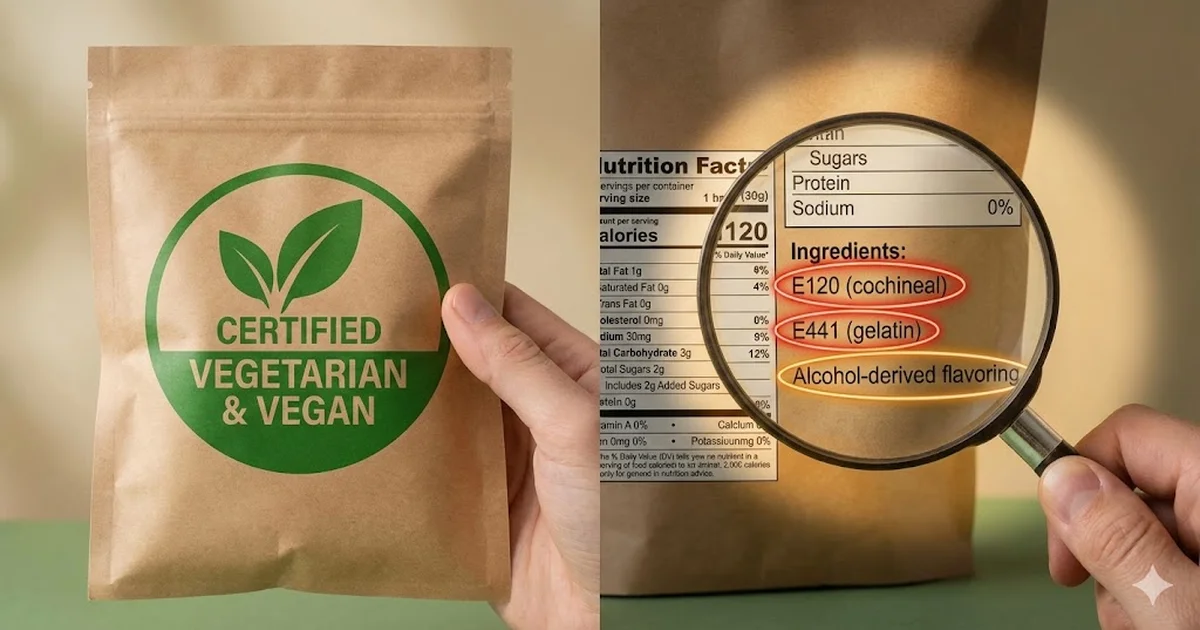
 Why 'Vegetarian' Does Not Always Mean Halal
Many Muslim shoppers assume vegetarian products are automatically halal. Learn where that assumption fails and what to check before buying.
Ready to verify E-codes instantly?
Stop guessing about food ingredients. Use HalalCodeCheck to scan products and get instant halal verification.