

Typing E-codes while holding a product in one hand is awkward. Voice search solves that - say the code out loud and get the result without putting anything down.
This guide shows you exactly how to use it, how to phrase your searches for best results, and what to do when the microphone mishears you.
How voice search works
Voice search uses your browser’s built-in speech recognition - the same technology behind voice assistants. It listens for E-code numbers and names, then searches the database automatically.
No audio is sent to any server. Recognition happens entirely on your device.
Step by step
Step 1: Go to the E-codes database
Open E-Codes Search from the homepage or the navigation menu.
Step 2: Find the microphone button
The microphone icon sits inside the search bar. On mobile it’s on the right side; on desktop it appears when you focus the search field.
Step 3: Tap the microphone and speak
Tap the microphone icon. You’ll see a prompt indicating it’s listening. Speak clearly at a normal conversational pace - you don’t need to raise your voice or speak slowly.
Step 4: Review and tap your result
The search field fills with what you said, and matching results appear immediately. Tap any result to see the full details: halal status, what it’s used for, where it comes from, and any madhab-specific notes.
How to say E-codes
The clearest way to say an E-code is to pronounce the letter and number separately:
| Code | Say it as |
|---|---|
| E100 | ”E one hundred” |
| E471 | ”E four seven one” |
| E322 | ”E three two two” |
| E1422 | ”E fourteen twenty-two” |
Both formats usually work - “E four hundred and seventy-one” is recognized just as well as “E four seven one”. Use whichever feels natural.
Searching by name instead of number
You can also say the ingredient name:
- “Curcumin” → finds E100
- “Gelatin” → finds E441
- “Mono and diglycerides” → finds E471
- “Ascorbic acid” → finds E300
This is useful when the label uses ingredient names rather than E-numbers - both refer to the same substance.
Searching for multiple codes at once
You can say several codes in one breath. Speak them as a natural list:
“E471, E322, E120”
The search will process each code and show results for all of them. This is the fastest way to check a whole ingredient list when you can spot the E-codes yourself.
There’s no limit on how many you can say in one voice session - but pausing between codes gives the recognition engine a cleaner signal.
Tips for accuracy
Quiet environments work best
Background noise - music, other shoppers, a running trolley - can interfere with recognition. If you’re in a noisy aisle, step to a quieter spot or switch to manual typing.
Hold the phone near your mouth
You don’t need to shout, but the microphone should be within 20–30 cm (8–12 inches) of your mouth. Holding the phone face-up on a flat surface while speaking also works well.
Speak the number digits clearly
“E four seven one” is less likely to be misheard than “E four-seventy-one”. When in doubt, say each digit individually.
Correct a misrecognition by typing
If the microphone hears the wrong code, the search field is editable. Tap it, correct the code, and the results update instantly. You don’t need to use voice for every search.
Troubleshooting
The microphone button doesn’t appear
Voice search requires browser permission. If you’ve previously denied microphone access:
- Chrome/Android: tap the lock icon in the address bar → Microphone → Allow
- Safari/iOS: Settings → Safari → Microphone → Allow
- Firefox: click the permission icon in the address bar and reset microphone permissions
Reload the page after granting permission.
My browser doesn’t support voice search
Voice search uses the Web Speech API, which is built into Chrome, Edge, and Safari. Firefox has limited support.
If your browser doesn’t support it, the microphone button won’t appear. Use manual typing instead - the search is just as fast once you’ve typed the code.
It heard the right number but showed no results
The code may not be in the database, or it may be formatted differently. Try:
- Searching without the “E” prefix (just the number)
- Searching by ingredient name instead
- Checking if the code uses a letter suffix (e.g. E160a, E160b)
The E-codes database covers 370+ codes. If a code genuinely isn’t there, it’s likely a very niche additive - check the manufacturer’s website for source information.
When to use voice vs typing vs scanning
| Situation | Best method |
|---|---|
| You can read the E-codes off the label | Voice or typing |
| Long ingredient list, lots of E-codes | Scan the label |
| Noisy environment | Manual typing |
| Hands full, label in one hand | Voice search |
| Already know the code number | Either - both are fast |
For a deeper comparison, see: Manual vs Voice Search: The Fastest Way to Check E-Codes.
What to do with the result
Each E-code result shows:
- Halal status - Halal, Mushbooh, or Haraam
- What it is - the common name and its function in food
- Source - plant, animal, synthetic, or mixed
- Madhab notes - where different schools of thought differ
If a code comes back as Mushbooh, that doesn’t automatically mean avoid it. Read the source details - the concern is usually about origin, not the substance itself. See: How to interpret Halal, Mushbooh, and Haraam status.
The best way to get a feel for it is to try it on something real. Scan a label now - or head to the E-codes database and try voice search yourself.
Related Articles
 How-To Guides
 How to Scan Food Labels with HalalCodeCheck
Step-by-step guide to scanning ingredient labels for halal verification. Tips for lighting, positioning, and getting accurate results every time.
 How-To Guides
 Understanding Halal, Mushbooh, and Haraam Status
What do Halal, Mushbooh, and Haraam mean for food additives? A clear guide to interpreting E-code statuses and making confident decisions while shopping.
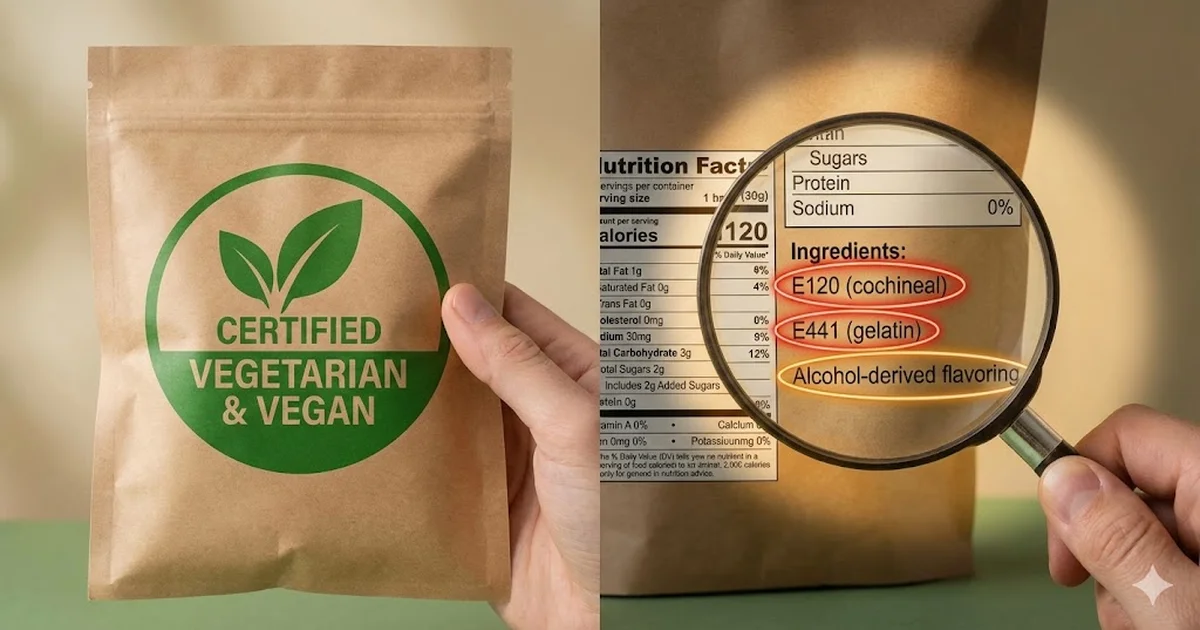 Ingredients
 Why 'Vegetarian' Does Not Always Mean Halal
Many Muslim shoppers assume vegetarian products are automatically halal. Learn where that assumption fails and what to check before buying.
Ready to verify E-codes instantly?
Stop guessing about food ingredients. Use HalalCodeCheck to scan products and get instant halal verification.